This article consolidates Gift Certificate and Value Card configuration and branding in Pulse Commerce. Use it to: configure availability and purchase limits, manage customer-facing Notes and Fine Print, set gift-certificate-specific shipping options, and replace default gift certificate images (including the logo) with your company branding via FTP.
Both paper and email gift certificates are customized using the Gift Certificate Module. Configuration controls the minimum/maximum purchase amount, storefront visibility, customer-facing content, and gift-certificate-specific shipping options.
Access the Gift Certificate Module
- Go to Site Settings > Gift Certificates and Value Cards.

Set Limits, Visibility, and Shipping Options
- Update Minimum Value and Maximum Value for both Gift Certificates and Value Cards.
- Use the Visible checkbox to control storefront availability for:
- Email-based gift certificates
- Mailable value cards
- Review and set the shipping options for value cards here.
Note: Gift certificate/value card shipping options are configured in this module and are not the same shipping options as the rest of the catalog.
Edit Customer-Facing Notes and Fine Print
- Click Edit for the Gift Certificate or Value Card type you want to configure.

- Use the WYSIWYG editor to update:
- Notes (customer-facing guidance and instructions)
- Fine Print (customer-facing terms and conditions)
- Click Update to save.
Pulse Commerce allows you to replace default gift certificate images (including the gift certificate logo) with your own branded assets. These changes are made using FTP by replacing files in the gift certificate images directory.
Replace the Gift Certificate Logo (GCLogo.gif)
- Log in to FTP and navigate to: /images/giftcertificate.
- Locate GCLogo.gif and replace it with your own branded version.
Critical requirement: The filename must remain GCLogo.gif.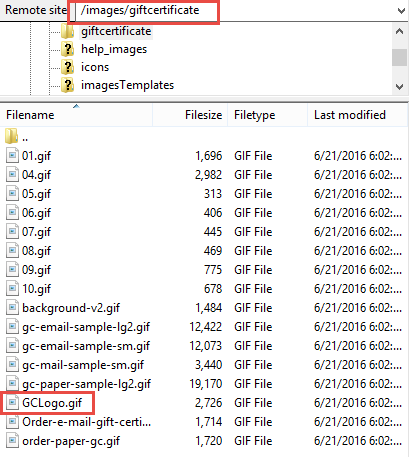
Other Gift Certificate Images You Can Replace
In the same folder (/images/giftcertificate), you can replace additional images and buttons by uploading your customized image using the exact same filename.
| Image / Button | File Name |
| Gift Certificate email sample image | gc-email-sample-lg2.gif |
| Gift Certificate email sample image | gc-email-sample-sm.gif |
| Gift Certificate mail sample image | gc-mail-sample-sm.gif |
| Gift Certificate paper sample image | gc-paper-sample-lg2.gif |
| Gift Certificate icon image | gift-cert-icon.gif |
| Order email gift certificate button | Order-e-mail-gift-certificates.gif |
| Order paper gift certificate button | order-paper-gc.gif |
| Show Now button | 10.gif |
| Goal | Where to Do It | What to Change |
| Control availability and purchase limits | Site Settings > Gift Certificates and Value Cards | Visible; Minimum Value; Maximum Value |
| Update customer-facing policy and instructions | Edit link in Gift Certificates and Value Cards module | Notes and Fine Print (WYSIWYG) |
| Configure value card shipping options | Gift Certificates and Value Cards module | Gift-certificate-specific shipping options (separate from catalog) |
| Replace gift certificate logo | FTP | /images/giftcertificate/GCLogo.gif (same filename) |
| Replace gift certificate sample images/buttons | FTP | /images/giftcertificate/ (same filenames) |