This article consolidates all supported methods for adding checkout messages, instructional text, and customer information collection points across the Pulse Commerce checkout flow. Use it to place guidance on the Shopping Cart, Payment Options, Order Review (One Page Checkout), and Order Confirmation pages, and to request additional customer input during checkout via built-in features.
Pulse Commerce enables merchants to display instructional or promotional text at multiple stages of checkout:
- Shopping Cart page (above and/or below the cart)
- Payment Options page (global payment guidance)
- Order Review page (One Page Checkout footer message)
- Order Confirmation page (post-order note; optionally pay-method-specific)
Add simple text above and/or below the Shopping Cart to communicate shipping notes, promotions, or checkout instructions.
Configuration Steps
- Go to Content Manager > Message Editor.
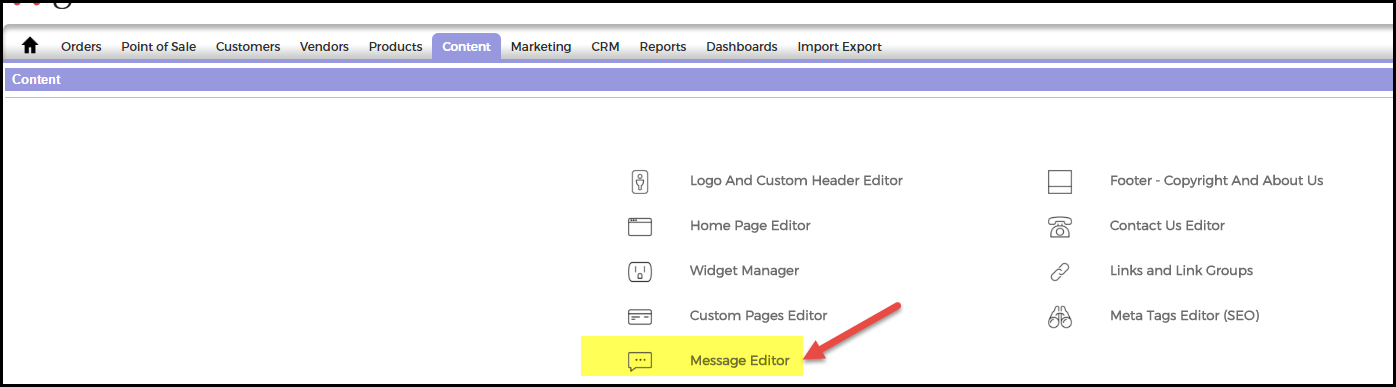
- Enter your message in:
- Shopping Cart Message - Above the Shopping Cart
- Shopping Cart Message - Below the Shopping Cart
- Click Update to save.
The message will display above and/or below the cart:

Add a global message regarding payment instructions (e.g., credit card authorization notes, billing policies, or payment handling guidance). This message appears on both the Payment Options page and the Order Review page.
Configuration Steps
- Go to Content Manager > Message Editor.
- Enter your message in the Credit Card Chargeable Message field.
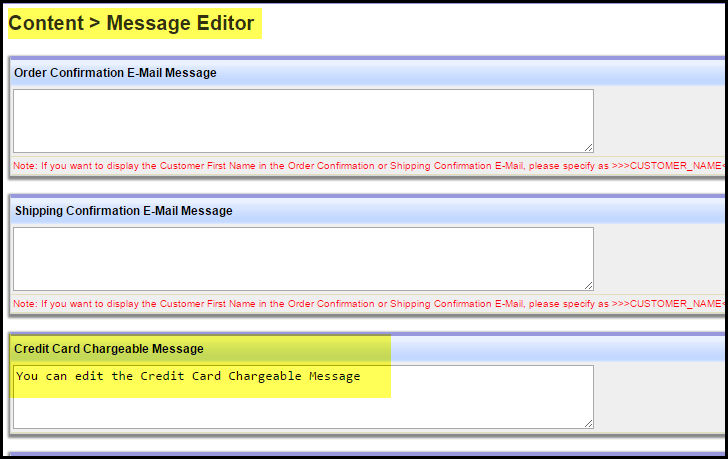
- Click Update to save.
Add a short footer message on the Order Review page for One Page Checkout (e.g., terms, final reminders, pickup requirements).
Configuration Steps
- Go to Content > Message Editor.
- Enter your message in the Custom Message on Order Review Page Footer (One Page Checkout) field.

- Click Update to save.
The message displays on the Order Review Page (only for One Page Checkout):

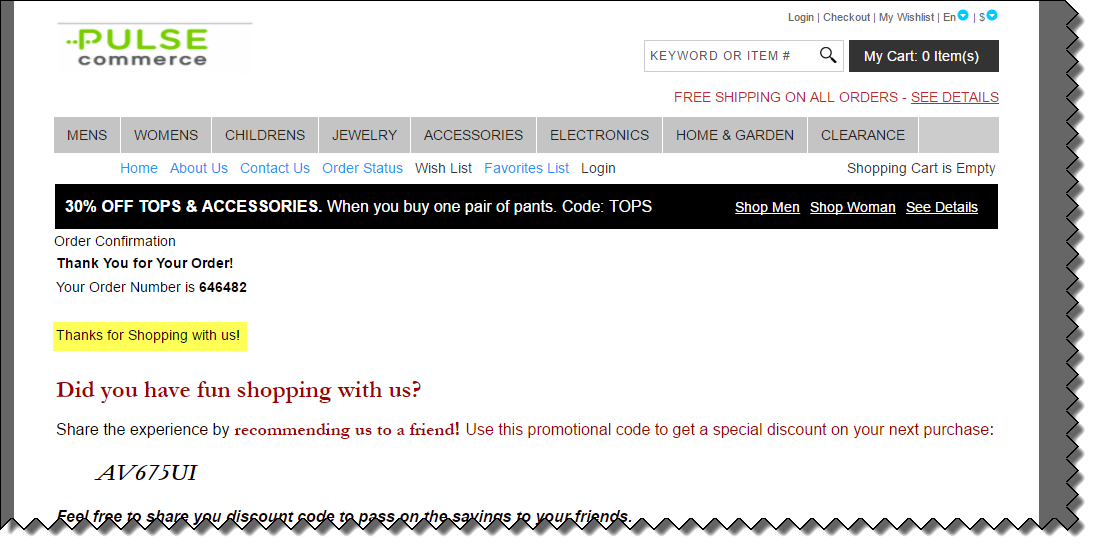
Add a message on the Order Confirmation page to provide post-order instructions (e.g., “reply to your confirmation email with documents,” “pickup scheduling,” “lead time expectations,” or customer service contacts). Pulse Commerce supports two methods: Content Management (global) and Pay Method (payment-method-specific).
Method 1: Content Management (Global Confirmation Message)
- Go to Content > Message Editor.
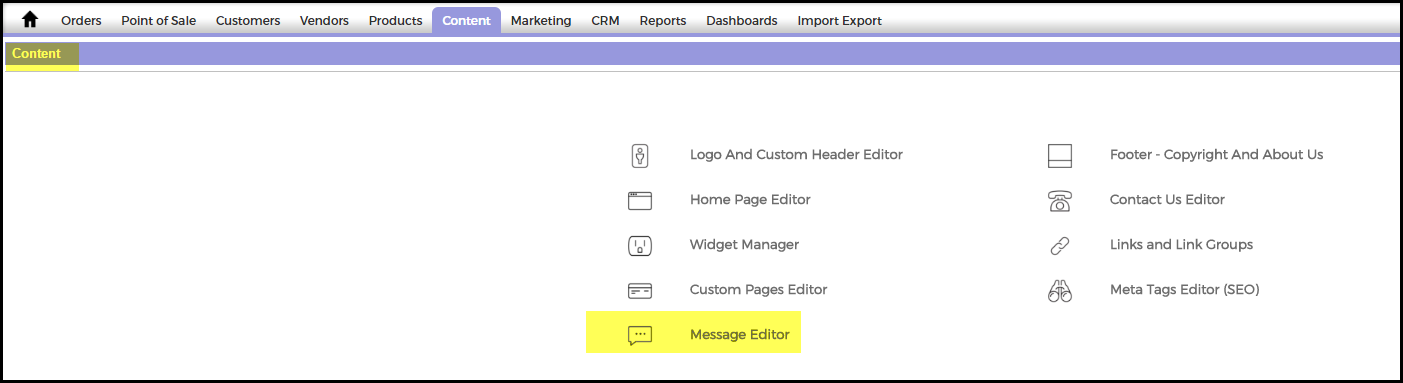
- Enter your message in Custom Message on Order Confirmation Page.

- Click Update to save.
- The message will display directly below the system-generated confirmation message.
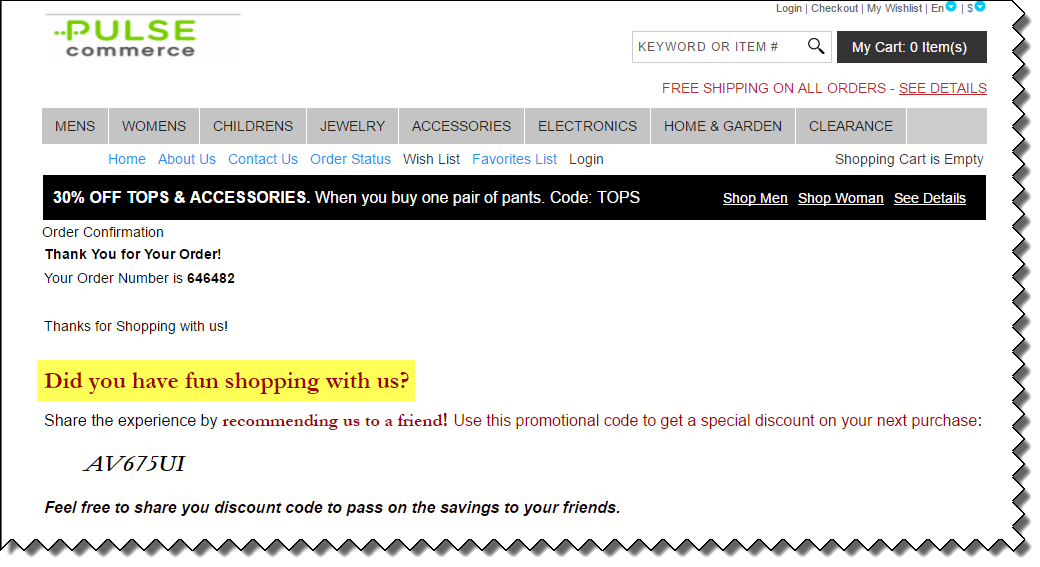

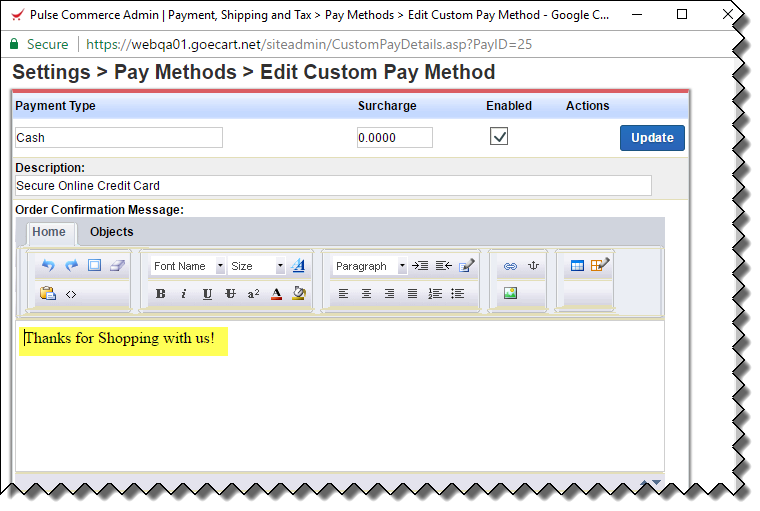
Method 2: Pay Method (Pay-Method-Specific Confirmation Message)
Use this method when the message should vary by payment method (e.g., purchase order instructions vs credit card messaging).
- Go to Settings > Pay Methods.
- Click Edit for the relevant active Pay Method.

- Enter your message in Order Confirmation Message, then click Update.


Pulse Commerce provides multiple mechanisms to collect customer-provided information during checkout, depending on whether the data is order-level, checkout-step-level, or product-level.
Supported Methods
- Special Instructions Text Box (order-level freeform notes during checkout)
- Checkout Survey Manager (structured questions with text box or dropdown answers; required/optional; help text/links)
- Gift Wrap Message (freeform gift message field on Order Review when gift wrap is enabled)
- Product Personalization (product-level data collection tied to specific SKUs)
- Order Confirmation Page (post-order instruction and call-to-action, including email links)
- System Images / Labels (customize labels/images on Order Review and Confirmation pages to better guide customers)
Enable Special Instructions Text Box During Checkout
This setting displays a “Special Instructions” text area during checkout so customers can enter order-level notes for merchant reference.
- Go to Settings > General Settings > Order Settings.
- Set Display Special Instructions Text Box During Checkout to Yes.

- The Special Instructions text area will be displayed during checkout for customer input.

- If set to No, the text area will not be displayed.


Optional: Customize the “Special Instructions” Label (System Image)
You can change the label to more explicit guidance (e.g., “Provide alternate contact number for delivery”).
- File Name: special_instructions_label_orderreview
- Location: /images/StoreFront_System_Images/
Checkout Survey Manager (Structured Questions)
Use Checkout Survey Manager when you need structured data collection beyond a freeform note field. It supports:
- Text box answers or drop-down answers
- Required or optional responses
- Help links or inline help text
Gift Wrap Message
When gift wrap is enabled, a “Gift-wrap message” text box appears on the Order Review page for customer input.
Product Personalization
Use Product Personalization to collect product-specific information (e.g., engraving text) tied to a SKU.
Order Confirmation Page as a Data Collection Call-to-Action
You can instruct customers to provide additional information after placing the order (for example, “Email us your tax-exempt certificate”) and include an email address or next-step guidance.
Many images and labels on the Order Review and Order Confirmation pages can be customized to better match your site layout or provide clearer instructions. These assets reside in: /images/StoreFront_System_Images/
| File Name | Location |
| change_ship_address.gif | /images/StoreFront_System_Images/ |
| change_bill_address.gif | /images/StoreFront_System_Images/ |
| change_payment.gif | /images/StoreFront_System_Images/ |
| apply_code.gif | /images/StoreFront_System_Images/ |
| Change_quantities_or_delete.gif | /images/StoreFront_System_Images/ |
| order_confirmation_header.gif | /images/StoreFront_System_Images/ |
| place_order.gif | /images/StoreFront_System_Images/ |
| special_instructions_label_orderreview | /images/StoreFront_System_Images/ |
| Checkout Stage | Where to Configure | Field / Mechanism |
| Shopping Cart | Content Manager > Message Editor | Shopping Cart Message - Above/Below the Shopping Cart |
| Payment Options (and Order Review) | Content Manager > Message Editor | Credit Card Chargeable Message |
| Order Review (One Page Checkout only) | Content > Message Editor | Custom Message on Order Review Page Footer (One Page Checkout) |
| Order Confirmation (global) | Content > Message Editor | Custom Message on Order Confirmation Page |
| Order Confirmation (per pay method) | Settings > Pay Methods | Order Confirmation Message |
| Order-level customer notes | Settings > General Settings > Order Settings | Display Special Instructions Text Box During Checkout |
| Structured checkout questions | Checkout Survey Manager | Text/dropdown; required/optional; help text/links |
| Label micro-instructions | System Images | /images/StoreFront_System_Images/ (e.g., special_instructions_label_orderreview) |