Answers to common questions about special shipping features including PO Box delivery, dimensional weight shipping, free shipping notifications, and freight broker integrations.
By default, Pulse Commerce does not allow customers to use PO boxes for shipping addresses. To enable PO Box shipping:
1Navigate to Settings > General Settings
2Locate the Do not allow PO Box for Shipping Address setting
3Change the setting to No
4Click Update to save your changes
UPS dimensional weight shipping calculates rates based on package size and weight, allowing you to ship items separately when more cost-effective.
Configure Product Dimensions
1Navigate to Products > Product Catalog Manager
2Open the Product Editor for each product
3Below the weight field, enter dimensions in inches:
- L = Length
- W = Width
- H = Height
Enable Individual Shipping
4Navigate to Settings > Ship Methods & Rates > Real-Time Shipping tab
5In the UPS section, locate the All Items ship setting
6Select Individually (use product dimensional weight for shipping rate calculation)
7Click Update
Max Box Weight (Ship Together Mode)
When using Together mode, you can set a maximum box weight to split orders into multiple packages:
Example: If Max Box Weight is 100 lbs and cart total is 250 lbs, the system calculates shipping for three packages: two 100 lb packages and one 50 lb package.
Dynamic Free Shipping Notification displays on the shopping cart page to inform customers how close they are to qualifying for free shipping, encouraging them to add more items to their cart.
How It Works
When you configure a sitewide free shipping discount with a minimum purchase requirement, the notification automatically appears in the cart showing customers how much more they need to spend to receive free shipping.
Example: If free shipping requires a $100 minimum purchase and the customer's cart total is $19.99, the system displays:
"Add $80.01 to get free shipping"
Requirements
- Must use a Sitewide Free Shipping discount
- Target items must be set to Include all items
- Customer's cart must meet the discount's usage and shipping country conditions
Echo Global Logistics is an add-on freight broker integration that provides multi-carrier rate quotes, shipment generation, and bill of lading creation for large or oversized items requiring freight shipping.
Key Features
- Multi-Carrier Rate Quotes: Compare rates from multiple freight carriers at order fulfillment
- Lowest Price Display: View the best available rates based on address and product weight
- Shipment Generation: Create freight labels directly from the admin panel
- Bill of Lading: Print freight shipping documentation
- Shipping Class Support: Configure different freight classes for products
- Service Options: Select lift-gate delivery, inside delivery, and residential delivery options
When to Use Echo Global Logistics
This integration is ideal for merchants shipping heavy or oversized items that require Less Than Truckload (LTL) freight services rather than standard parcel shipping.
How to Enable
Echo Global Logistics is an add-on module. Contact your Pulse Commerce Account Manager to explore this integration and discuss implementation details.
Change the Shipping Origin Address: Go to Settings > Ship Methods & Rates > Shipping Origin Address

Dimensional weight is the volumetric weight of packages. Freight carriers then utilize the greater of the actual weight or dimensional weight to calculate shipping charges.
In Pulse Commerce, the Weight field should contain a product's dimensional weight. Please be aware that this property is calculated slightly differently depending on the shipping company. Having accurate dimensional weights will ensure that your items will have the appropriate shipping costs associated with them.
Here, the actual dimensions of the box for this item is 9in.x10in.x1in. It's ACTUAL weight is one pound. Using UPS's dimensional weight formula, (9x10x1) / 194 = 0.46lbs.
Since the original weight is greater than the calculated dimensional weight, the original weight should be entered into Pulse Commerce's product editor.
Note: Dimensional Weight is only an issue for large, non-dense objects. for normal sized, average weighted objects, there is little difference between the weight and the dimensional weight. In this case you might consider just adding a small handling fee to cover any difference.

When customers create their addresses in Pulse Commerce, you can specify whether the address type is a required or optional field.
This setting is found under Settings > General Settings > Customer Address Location Type.

You can also manually update this value for existing customers:

Note: During Onboarding, you can specify the default for treating addresses which have not specified address type.
- Go to Settings > Ship Methods & Rates.
- Set the radio button for Amount or Percentage and enter the appropriate value in the fields provided.
Note: If Percentage is selected, the Handling Fee is calculated for the Order Total, which is obtained after adding any shipping and tax amounts, then multiplied by the percentage handling fee.
- When finished, click the Update button.

It is recommended that you inform your customers of your shipping policy (e.g., via the storefront or through some other method) prior to the time that the shipping charge is incurred.
Update the shipping charge for an order:
- Go to Orders.
- Click the link for the type of order you are updating, such as Pending Approval.
-
In the list of orders pending approval, open the order which needs updating

-
Click the Edit Order button.

-
On the Order Information page, under the Items tab, edit the shipping, handling, and other costs as required.
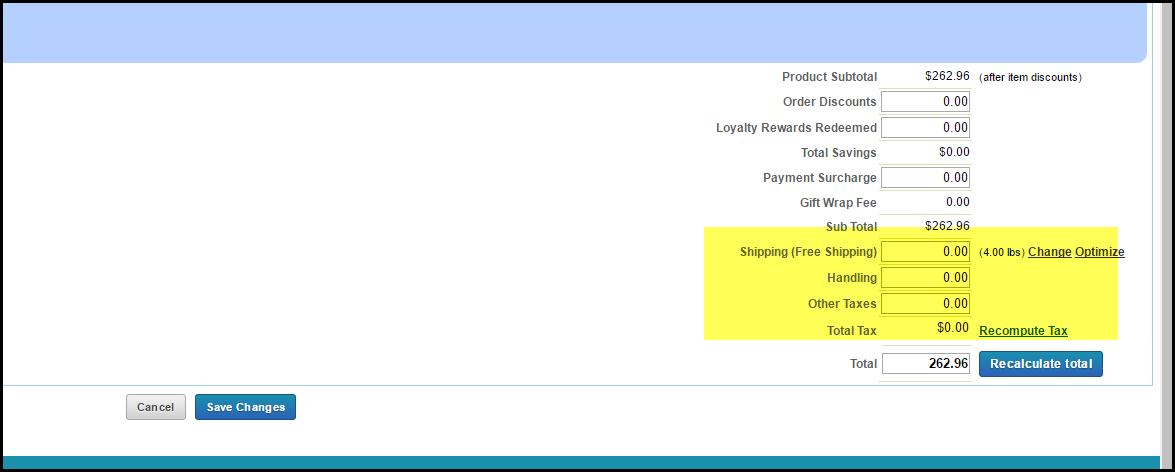
- Click the Recalculate total button and Save Changes when finished.
Note: Pulse Commerce will not automatically charge the card after the order is placed. You will need to collect payment by manually charging the card or through another offline payment method.
- Go to Site Settings > Ship Methods & Rates.
- Change the setting for Allow Orders with Foreign Shipping Address to Yes.
- Ensure you have the desired foreign countries selected.
- Now that you have enabled International shipping, confirm that you have an available shipping method for international use: either a real-time shipping method or an International-only custom shipping method.
- You are now ready to accept international orders.

