How do you customize your homepage, create landing or under-construction pages, and add links or widgets in Pulse Commerce? This guide consolidates the complete workflow for updating homepage content, building custom landing pages, managing sockets/widgets, controlling visibility and sort order, adding hyperlinks, and using HTML editing for advanced changes.
Pulse Commerce supports multiple ways to control what customers see on your storefront homepage and landing experiences. The correct tool depends on what you are trying to build.
| Tool | Use It For | Common Examples |
| Home Page Editor | Editing the primary homepage content and managing homepage sections that can be controlled by visibility rules. | Promotional sections, rotating homepage content blocks, seasonal content with start/end dates. |
| Custom Pages | Creating standalone landing pages and optionally overriding the storefront homepage using an SEO file name. | Under-construction page, pre-launch landing page, temporary homepage replacement. |
| Socket Manager | Editing content widgets (“sockets”) that appear in specific homepage panels (left/right/center/top). | Sidebar promotions, informational blocks, links, simple HTML widgets. |
Pulse Commerce allows you to create a custom homepage that can display before customers reach the main storefront. You can also use the same approach to create a landing page or an under-construction page.
Required steps: (everything else is optional)
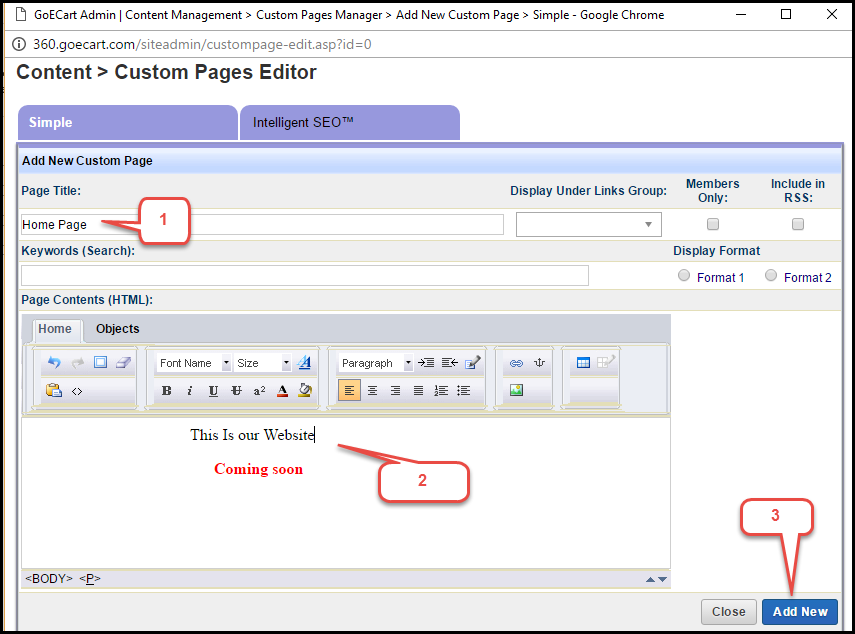
- Go to Content > Custom Pages > Add new custom page.
- Enter a Page Title.
- Enter your page content.
- Click Add New to create the page.
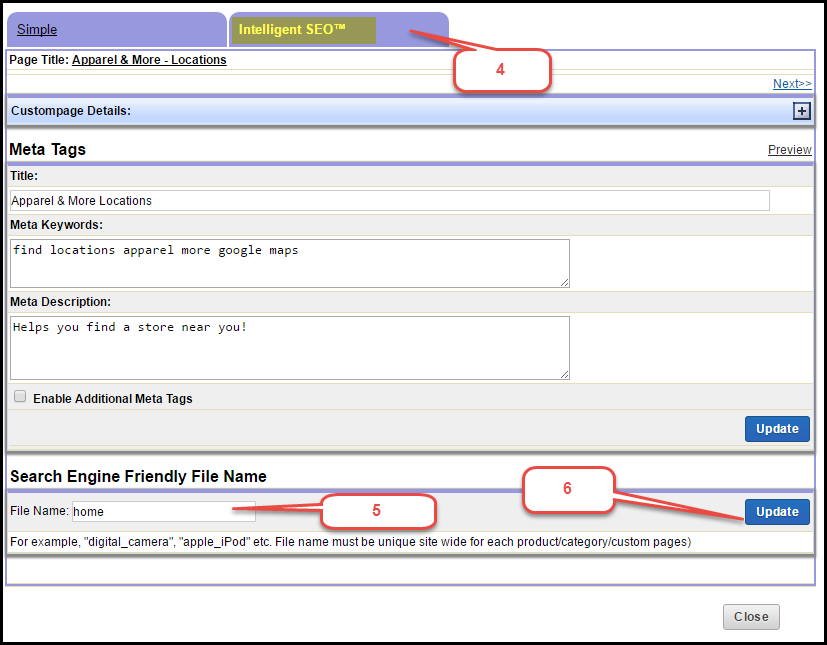
- Click the Intelligent SEO tab.
- In the file name field, type home.
- Click Update.
- Click Close.
You can still view the original/default storefront homepage by visiting: http://<yourdomainname>.com/default.asp
Homepage content can include multiple elements beyond the main content area. Many storefronts use widgets/sockets in different panels to create a richer layout.
Common Homepage Panels
- Right Panel and Left Panel – sidebar areas commonly used for widgets and links
- Center Panel – main content area that can support flexible content
- Top Panel – used for top-of-page widgets and rotating content
Visibility and Scheduling
Some homepage elements can be configured to be:
- Not visible (hidden)
- Visible (always shown)
- Visible within a start/end time window (scheduled content)
Sort Order
If multiple homepage sections/widgets are displayed in the same area, sort order controls placement:
- Lower sort numbers appear higher on the page
- Higher sort numbers appear lower on the page
You can add clickable links in homepage sockets (widgets) using the Socket Manager and the built-in hyperlink tool.
- Go to Content Management > Socket Manager.
- Select the tab containing the socket you want to update (for example, Right Panel).

- Scroll down to find the socket (if needed).
- Click Edit for the socket you want to change.

- In the Socket Editor, add text or highlight the text you want to convert into a link.
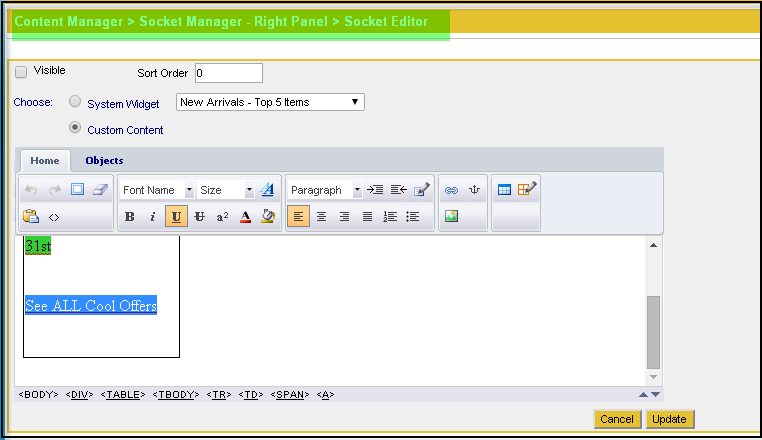
- Click the Hyperlink icon.
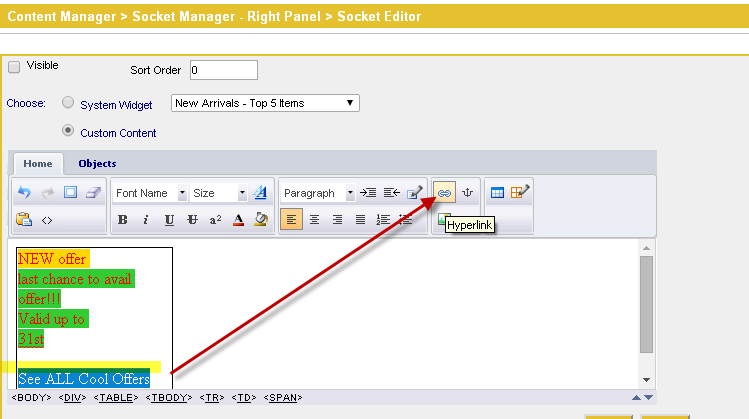
- In the Hyperlink window, enter the link address and optionally configure the link fields.
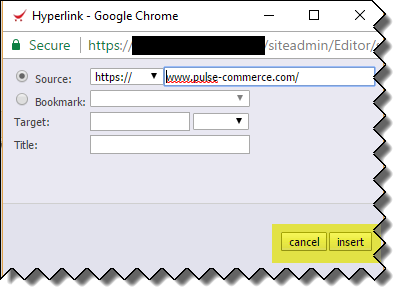
- Click Insert. The link is inserted into the Socket Editor content.
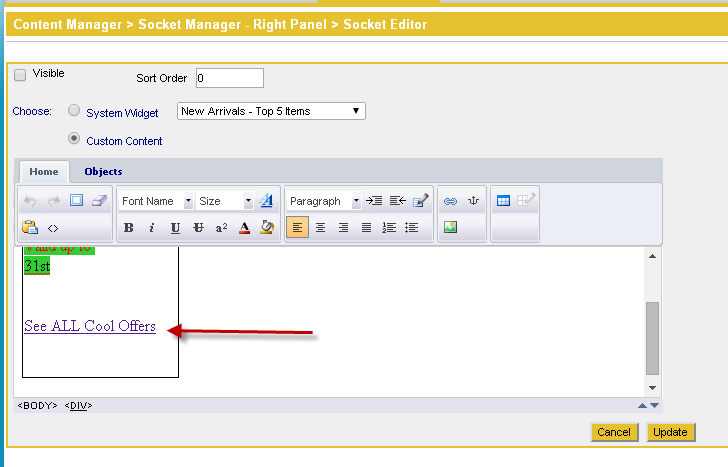
- Click Update.
- Go to the storefront, refresh your browser, and verify the link appears and works correctly.


When editing homepage content (or sockets/widgets), you can typically use the WYSIWYG editor for minor text changes. For larger changes—especially layout, alignment, or image-heavy updates—HTML editing is often more reliable.
- Use WYSIWYG for small edits (typos, short text changes, simple links).
- Use HTML View / View Source for precise formatting control.
- For sweeping design changes, consider using an external HTML editor (e.g., Dreamweaver) and then pasting the finished HTML into Pulse Commerce.
Use this end-to-end workflow to build and maintain a customized homepage and landing page experience.
- Decide what you need:
- Homepage override (use Custom Pages + SEO file name home)
- Landing page (use Custom Pages, do not set SEO file name to home)
- Homepage widgets/links (use Socket Manager)
- Build your content in the correct editor (Home Page Editor, Custom Pages, or Socket Manager).
- Configure visibility and (if applicable) scheduling for time-bound promotions.
- Set sort order so the most important content appears higher on the page.
- Add hyperlinks using the hyperlink tool or HTML source editing.
- Validate on the storefront:
- Refresh the page and confirm content appears as expected
- Test on desktop and mobile
- Verify all links work and open the correct destinations
- If reverting is required, remove the home SEO override or delete the custom page to restore default behavior.
This video tutorial walks through the primary areas in the Content tab that apply to homepage customization (Home Page Editor, sockets/widgets, visibility, and sort order).