This article explains the differences between Abandoned Shopping Cart, Incomplete Order (Incomplete Sales Order), Wish List, and Product Favorites Lists in Pulse Commerce, including how each feature is used, what data is captured, how merchants typically act on it, and how to configure and use Product Favorites Lists.
These features are related, but they represent different types of customer activity. Use the table below to identify which tool best matches your operational need.
| Feature | What it represents | Typical merchant action | Key notes |
| Abandoned Shopping Cart | A customer added items to the cart but did not complete checkout within your abandonment window. | Send abandoned-cart email reminders; analyze abandonment patterns and conversion recovery. | Best for recovery marketing. Often tied to automated emails. |
| Incomplete Order (Incomplete Sales Order) | A checkout attempt that produced an order record but did not complete successfully (e.g., payment not finalized). | Export and review incomplete orders; follow up operationally; reconcile issues (payment, address, fraud rules). | Best for operations and reconciliation. Often reviewed via export/reporting. |
| Wish List | A “save-for-later” list where items are typically removed once added to cart. | Review wish-list reporting for merchandising insight and high-intent products. | No import capability. Reporting is available in the Admin Panel. |
| Product Favorites Lists | A “save-for-later” feature where items remain saved even after being added to cart, and customers can create multiple folders. | Enable the feature, guide customers to use it, and use Favorites Import/Export for bulk management. | Supports multiple lists (folders) and bulk import/export. |
An Abandoned Shopping Cart occurs when a shopper adds items to the cart but does not complete checkout. Abandoned cart data is most commonly used for recovery marketing—typically via automated reminder emails.
How to Set Up Abandoned Cart Emails
An Incomplete Order (also referred to as an Incomplete Sales Order) is typically created when checkout progresses far enough to generate an order record but does not complete successfully. This is commonly used for operations (reconciliation, troubleshooting, follow-up) rather than marketing.
How can I export Incomplete Sales Orders
How to export Incomplete Sales Orders (high level)
1 Navigate to Import/Export > Export in the Admin Panel.
2 Locate the Incomplete Sales Orders Export option.
3 Apply any filters needed (date range, customer criteria, etc.).
4 Generate the export file and review the output.
Wish Lists allow customers to save items they may want to purchase later. A key behavioral difference is that Wish Lists typically remove an item after it is added to the cart.
Where to find the Customer Wish Lists report
Go to Marketing > DISCOUNTS, EMAIL & OTHER > Customer Wish Lists.

What the report shows
Along with Customer Name and Customer Email, the report displays:
- The date the wish was created.
- The date the wish was last modified.
- The customer’s IP address.
- The HTTP Referrer (if the customer arrived via a referrer such as Google or Yahoo).
- The number of items in the Wish List.
- The total cart value.

The Items link opens the customer’s Wish List in a popup window.
Product Favorites & Wish Lists are similar in that both enable customers to create a list of products they wish to buy later.
The key differences between them are:
- Product Favorites do not take the item out of the Favorites list when added to the cart. Wish Lists do.
- Product Favorites allow creating multiple favorites (groups/folders) and allow selecting the group when adding to favorites.
When the Product Favorites Lists feature is enabled, an Add to Favorites button appears below the Buy button on product pages.

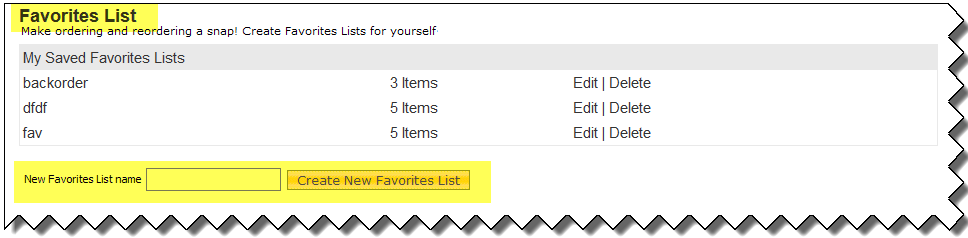
Creating a Favorites list (folder)
- In the Top Menu Bar, click the Favorites List link.
- Enter a name in the New favorite list Name field.
- Click Create New Favorite List.
Adding a product to Favorites lists
On a product page, when a customer clicks Add to Favorites, the system navigates to the Favorites List page. From there the customer can:
- Save to an existing Favorites list (select the radio button for the list and click Save to Favorites Lists).
- Create a new list (enter a name in New favorite list name, click Create New Favorite List, then select it and click Save to Favorites Lists).
Moving products from Favorites lists to cart
Click the Edit link for a given Favorites list. Select the product(s) and click Add to Shopping Cart.
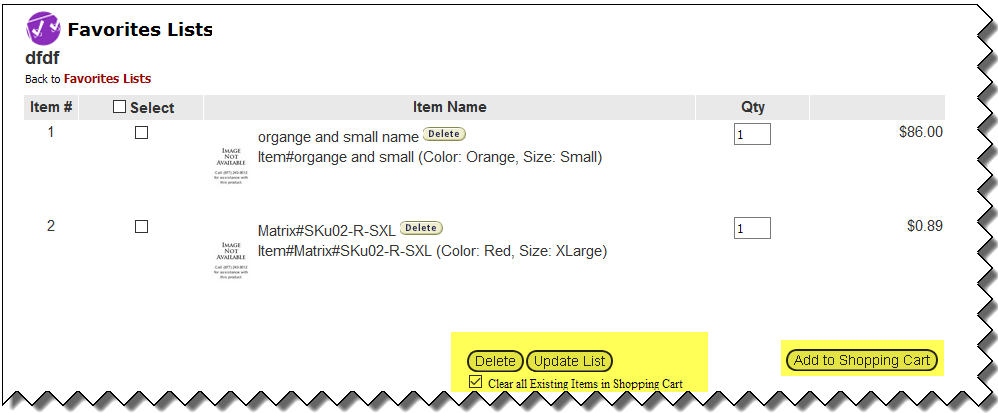
To delete a product: Select the item and click the Delete button.
To update quantity: Select the product, update the quantity, and click the Update button.
The Clear all existing items in Shopping Cart checkbox removes existing items from the cart and adds the selected Favorites item(s) when you click Add to Shopping Cart.
Pulse Commerce supports Favorites Import and Favorites Export for bulk creation and removal of customer Favorites items. This is the supported mechanism for large-scale Favorites maintenance (marketing, migrations, backups, and validation).
How to Import Favorites (and Export Favorites)
When to use Favorites Import
- Add new Favorite items for customers (Insert mode).
- Remove existing Favorite items (Delete mode).
- Create Favorites folders automatically during insert operations (if they do not already exist).
When to use Favorites Export
The Favorites Export uses the same format as the Favorites Import and is the recommended way to generate a baseline file.
- Create a backup before performing a Favorites Import.
- Validate results after running a Favorites Import.
- Build a baseline template before preparing a Favorites Import file.
- Support marketing and customer-preference analysis.
Where to run the Favorites Export
1 Navigate to Import/Export > Export in the Admin Panel.
2 Locate the Favorites Export option.
3 Enter any filter criteria (Customer, Email, SKU, Favorites Folder Name, etc.).
4 Click Generate Export File.
Limitations:
- The customer is required to log in to add an item to favorites.
- Wish lists may allow adding an item after logout if a shopping cart cookie is available. Favorites are associated with the customer account, so login is required.
- Moving items between Favorites folders is not available.
- The Qty box on the Favorites page requires saving before that quantity is used. Stock is validated in the shopping cart (not on the Favorites page).
- Add to wish list from the Favorites list page is not supported.
- Renaming a folder once created is not allowed. Customers can create or delete folders. Deleting a folder deletes all products in that folder.